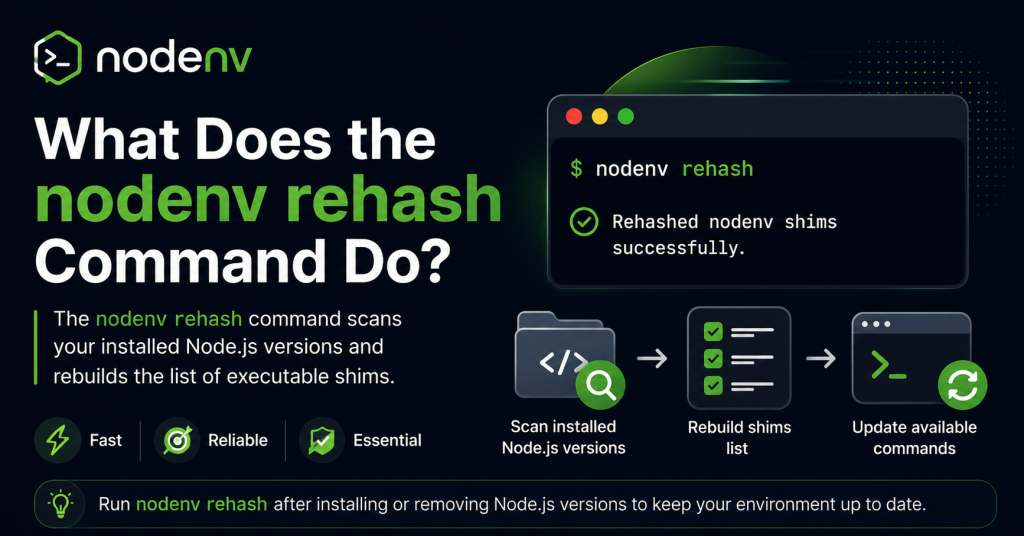
If you’re using nodenv to manage multiple Node.js versions, you’ve likely encountered the nodenv rehash command and wondered what it actually does. While it may seem like a simple maintenance command, it plays an important role in keeping your Node.js environment working correctly. Whenever you install a new Node.js version or add global npm packages, nodenv needs to recognize those new executables. That’s where nodenv rehash comes in. It rebuilds nodenv’s shim files, allowing your terminal to locate and run newly installed commands without issues.
Understanding how and when to use this command can help you avoid common errors such as “command not found” and ensure a smoother development experience. In this guide, we’ll explain what nodenv rehash does, why it matters, and when you should use it.
Read More: Why Is nodenv Not Working and How Can I Fix It?
Understanding How nodenv Works
Before learning about nodenv rehash, it’s helpful to understand how nodenv manages Node.js versions.
Unlike traditional version managers, nodenv doesn’t modify your shell every time you switch Node.js versions. Instead, it uses shims—small executable files that act as intermediaries between your terminal and the actual Node.js binaries.
When you type a command such as:
nodeor
npmyour terminal actually executes a shim created by nodenv. That shim determines which Node.js version should be used based on your current directory, local configuration, or global settings.
This approach makes switching between Node.js versions fast and seamless.
What Is the nodenv rehash Command?
The nodenv rehash command rebuilds nodenv’s shim directory.
Whenever new executable files become available—such as after installing a global npm package—nodenv needs to create or update shims for those executables.
Run the command like this:
nodenv rehashAfter running it, nodenv scans the installed Node.js versions and globally installed packages, then recreates the required shim files.
Without rehashing, newly installed commands may not be available even though the software was installed successfully.
Why Are Shims Important?
Every executable command managed by nodenv has a corresponding shim.
Examples include:
- node
- npm
- npx
- yarn
- pnpm
- eslint
- prettier
- vite
- ts-node
Instead of directly executing these binaries, nodenv routes them through shims that determine which Node.js version should run them.
This system allows different projects to use different Node.js versions without conflicts.
When Should You Run nodenv rehash?
There are several situations where running nodenv rehash is recommended.
After Installing a Global npm Package
For example:
npm install -g typescriptThe installation creates the tsc executable.
Run:
nodenv rehashNow the tsc command becomes available through nodenv.
After Installing a New Node.js Version
If you install another version using:
nodenv install 22.0.0running:
nodenv rehashupdates the shims for that installation.
After Updating Global Tools
Whenever you install or update tools like:
- ESLint
- TypeScript
- Yarn
- PNPM
- Vite
- Create React App
rehashing ensures their executables are recognized.
When Commands Cannot Be Found
If your terminal displays errors like:
command not foundor
No such commandrunning:
nodenv rehashis often one of the quickest fixes.
How Does nodenv rehash Work?
Internally, the command performs several actions.
It scans every installed Node.js version.
Next, it looks inside directories containing executable files, including:
bin/directories within each Node.js installation.
It then regenerates the shim files inside nodenv’s shim directory.
Finally, your shell can locate the updated executables without requiring manual configuration.
The process usually finishes in just a second or two.
Example Workflow
Imagine you’re installing the Vite build tool.
Install it globally:
npm install -g viteImmediately afterward, your terminal may not recognize:
viteRunning:
nodenv rehashcreates the required shim.
Now:
vite --versionworks correctly.
What Happens If You Don’t Run Rehash?
Skipping rehash doesn’t damage your installation.
However, newly installed executables may remain unavailable.
For example:
npm install -g prettierThen:
prettiermay return:
command not foundRunning:
nodenv rehashusually resolves the issue instantly.
Does nodenv Automatically Rehash?
Many nodenv plugin setups automatically execute nodenv rehash after installing global npm packages.
However, automatic behavior depends on your configuration and installed plugins.
If automatic rehashing isn’t enabled, you’ll need to run it manually whenever new executables are installed.
Fortunately, the command is lightweight and safe to execute whenever necessary.
Is nodenv rehash Safe?
Yes.
The command does not:
- Delete Node.js versions
- Remove npm packages
- Modify project files
- Change your code
- Affect installed dependencies
It simply rebuilds shim files so nodenv knows about available commands.
You can run it as often as needed without worrying about damaging your environment.
Troubleshooting Common Issues
Command Still Not Found
Check whether nodenv is initialized correctly.
Run:
nodenv doctoror verify your PATH:
echo $PATHThe nodenv shims directory should appear before the system Node.js installation.
Wrong Node.js Version
Verify the active version:
nodenv versionIf necessary:
nodenv global 22.0.0or
nodenv local 22.0.0Then run:
nodenv rehashnpm Package Installed but Doesn’t Work
Confirm that it was installed globally:
npm list -g --depth=0If it’s listed but unavailable, run:
nodenv rehashBest Practices
To avoid command-related issues:
- Run
nodenv rehashafter installing global npm packages. - Rehash after installing or upgrading Node.js versions.
- Keep nodenv updated to benefit from improvements.
- Verify your PATH includes nodenv shims.
- Use project-specific Node.js versions with
nodenv local.
Following these practices helps maintain a reliable development environment.
Conclusion
The nodenv rehash command is an essential utility for anyone using nodenv to manage Node.js versions. It refreshes the shim files that connect your terminal to the correct Node.js executables, ensuring newly installed global npm packages and Node.js versions are recognized immediately. Although it only takes a moment to run, it can prevent frustrating “command not found” errors and keep your development environment functioning smoothly. By understanding when to use nodenv rehash, you can troubleshoot issues more effectively and maintain a reliable, efficient Node.js workflow.